A little over 3 years ago I was introduced into the world of print on demand. Previous to that, I had always known about the industry and dabbled in Teespring without success because I had no idea what I was doing. Then along came Amazon with the release of their print on demand platform “Merch by Amazon”. I decided to give it a try and was shocked at the amount of money that could be made by simply uploading designs that customers wanted to purchase. I was HOOKED! I really do mean hooked. Every day I spent more and more time doing research, getting designs created, and uploading them onto t-shirts (then long sleeves, hoodies, sweatshirts, popsockets…). The more products I put my designs on, the more money I made. By the first years end, my business partner and I had made well into the 6 figures and it has only continued the upward trend since then.
This guide is going to go over how to take your business assets in the print on demand industry (designs) and re-purpose them to make thousands of dollars more a month with a little more effort. The best part, is that all of these products are also POD (print on demand), you hold ZERO inventory, and you do not have any customer support holding you back or giving you a headache. We will go over why we decided to launch this site/service (bookbolt.io) and how it will take all the headache away from adding yet another stream of revenue to your business. If you have any experience selling on Merch, this should be an easy addition for you. If you are brand new, this should give you the steps to get started and make your very first sale.
As an internet entrepreneur, like everyone else reading this, we are always looking forward. What does the future hold? What are the next opportunities? What will the next flow of income be from? Selling KDP books through Amazon is an Amazing opportunity but I do need to be transparent. This is going to require work and it is not “fast” money. You will need to work for it, put in the time and put in the effort. This is, at the end of the day, a business. So many people in this space treat it as a hobby. Treat it as a business and you will see insane returns. Treat it as a hobby, and you might get burned out. You need to be willing to do the research, list out your products, and include GREAT designs for your covers. We are going to go over ever detail in this guide, so let’s do it!
What is KDP?
Amazon KDP is short for Amazon Kindle Direct Publishing. If you are an author, you could take two routes to release your book. You could either do traditional publishing where you find a publishing house or you could go into self publishing. KDP allows you to self publish your books without any help from a publishing house. Furthermore, it gives you distribution to Amazon’s massive customer base!
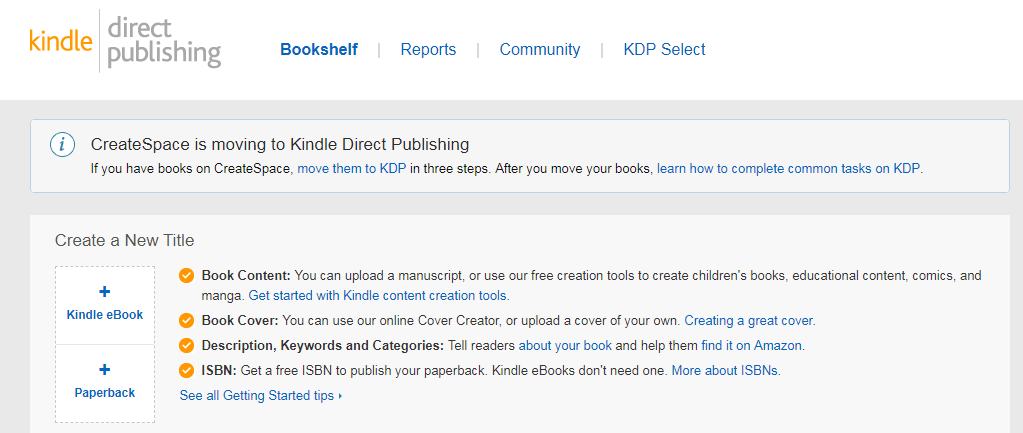
Recently, if you wanted to product paperback books, you would most likely use Createspace. However, Createspace has now merged with KDP and you can now launch your print on demand books through the KDP platform. This means that you can upload a cover, an interior, a title, and some keywords and your paperback book will be for sale on Amazon. Whenever your book sells, Amazon will print the book, ship the book, and deal with the customer service. After that, they kick you back a royalty!
WHY KDP / NO Content Books?
Amazon controls the vast majority of all ebook sales on the internet at a staggering 83.3% and on the printed side of things, Amazon is close to HALF of the US market for printed books. Long story short, Amazon OWNS the market for Books, and all those customers are eyeballs that could potentially buy your books.
When we say no content or low content books, think of books with covers that have designs or illustrations with interiors that are nearly blank (journals, notebooks, music sheets, doodle pages). Using KDP, we can use designs that we create, or have already used to sell on T-shirts through different print on demand platforms, and sell brand new products with them!
We can sell brand new products to an entirely new audience all on Amazon. This audience is not looking to “wear” the designs you create, but rather, are looking for designs that make a statement that they can bring with them to jot down notes and whatnot.
Uploading designs to KDP also offers some benefits that a lot of clothing POD (print on demand) platforms do not offer:
- Backend Keywords
- No Upload Limits
- No Removal Periods
- No Sales Minimum
- Multiple Products (with the same cover)
 Use KDP to Re-purpose Your Designs
If you are already a POD seller in the clothing space, it is very likely you already have 10, 100, 1000, or even 10,000+ designs in your catalog. These are assets for your business and currently they are earning your royalties and profits from selling clothing.
If you could take those SAME designs and repurpose them to add another stream of revenue to your business would you do it? Of course you would!
With just a little more time and effort, you can use those same designs to add an extra $100, $1000, or even $5000+ per month to your business by using those designs on another print on demand product (low content books!).
This is almost a no brainer for people who have been in the space for a while, but it is also an incredible opportunity for people who are new to the world of print on demand. Most people are so focused on filling their Merch by Amazon slots and running AMS ads that they forget about a market where there is a LOT LESS competition. Selling to a different subset of an audience for great royalties with little competition allows you the first mover advantage that people who got into Merch by Amazon early had. Get in, get your sales, and stack those reviews!
Why more people are not uploading their designs to KDP is beyond me, but I am about to show you how easy it can be. Let’s step through the process from beginning to end.
Amazon KDP Print on Demand Method
In order to add this stream of income to your business, you are going to need a few things:
- KDP Account
- Designs/Artwork
- No/Low Content Book Interiors
You will also need to have a good understand of what people are buying on Amazon. This means research and keywords! You can have the best designs in the world, but if no one is looking for your “Happy Mouse Beer Jug Journal” you are not going to make any sales. We will go over how to properly do this in a bit.
KDP Account
The first step is to grab your KDP account. If you already have an account that you use for MBA, you can simply sign up with the same email. However, sometimes people like to keep different arms of their business under new emails, so you could always create a new account as well.
Sign up for KDP here: https://kdp.amazon.com/
Once you are logged in, click on your name in the upper right hand corner:

You will need to fill out some information before you can get started uploading your books.
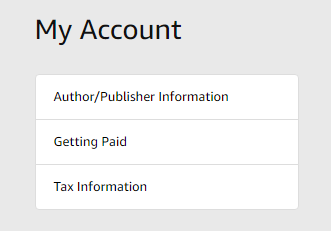
The first thing you will need to fill out is your Author/Publisher Information. This is simply going to be your Country, Full name, Address, and phone number. This needs to be REAL information because otherwise they will not be able to send you your money.
The second thing you need to fill is your “getting paid” section. Here is where you are going to enter your bank account information so that KDP can send you a direct deposit directly to your bank for any royalties you earn. Once you do this for a while, getting those monthly deposits is pretty nice!
Finally, you will need to take a quick tax interview! Simply answer all the questions truthfully and then sign the document. Once you have finished all three sections, they should have green check marks next to each section.
Designs/Artwork
Now that you have your KDP set up, you still need to get some designs to actually put on your books!
If you are starting off brand new and do not have designs and do NOT want to do them yourself, I would suggest reading this article I wrote on how to outsource on Upwork.
For everyone else, I am going to assume you already have a catalog of designs that you are using for Print on Demand. Even if you have designs for clothing, these still need to be tweaked in order to put them on books. You need to have them resized for covers and for the size of books you are going to put up.
If you are proficient in Photoshop or Illustrator, you can download individual templates from here and add each one to add your images. This is what we started off doing and it took FOREVER.
To make the process a whole lot easier and less painful, we added a designer to Book Bolt which I will be using for this tutorial.
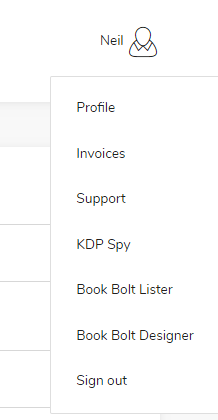
 After you grab a Book Bolt account (link above!), log in to the software, and use the drop down menu to select the Book Bolt Designer (Studio):
This will open up the Studio and it will look like this:
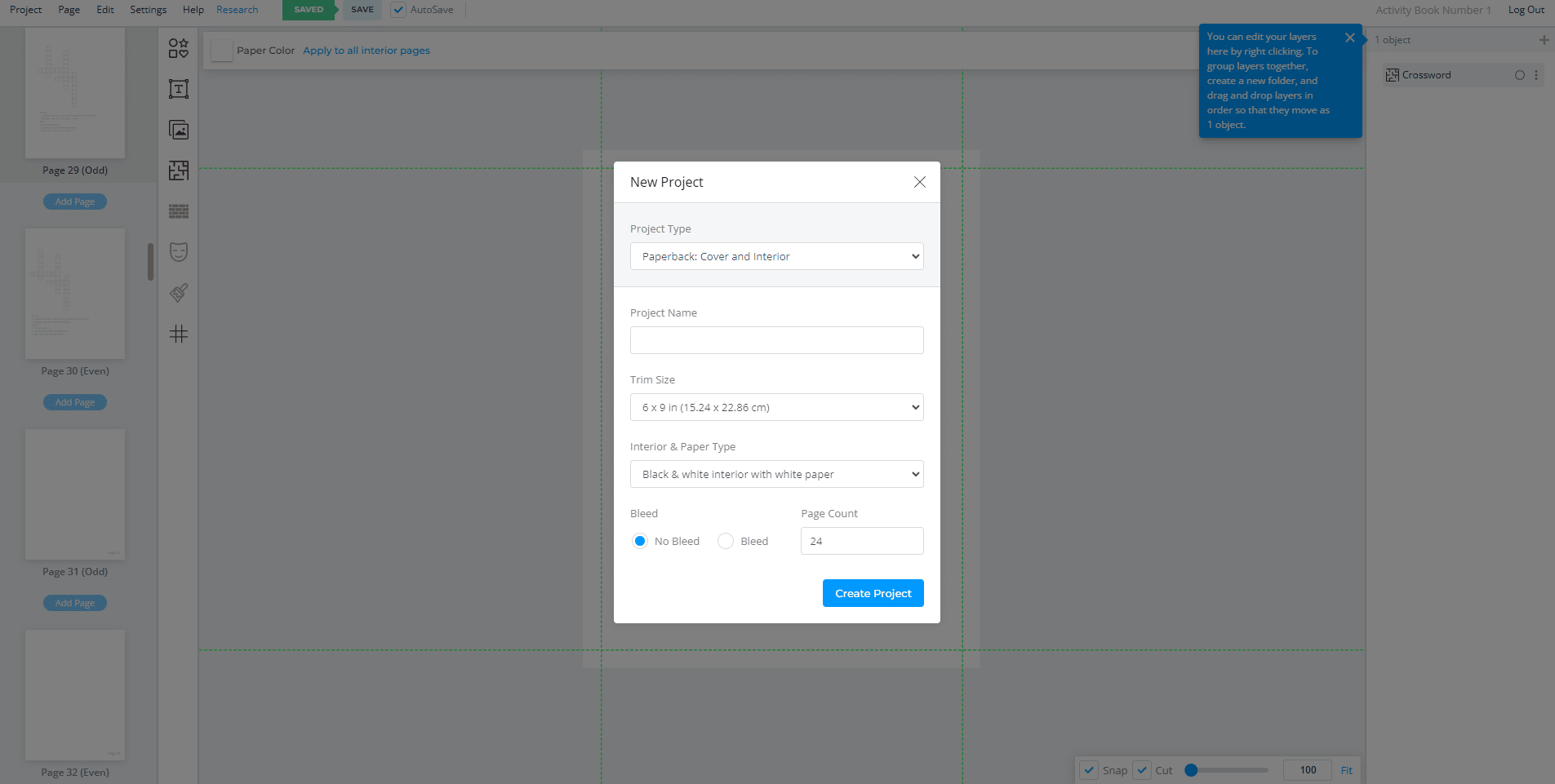
You will want to pick a book size using the drop down menu. This will show you all the options that you have on KDP all in one dashboard. There is currently 16 different sizes that you pick from (that means you can do 16 sizes per design for each product).
You then need to give your book a page count. This will give your book the correct “spine” width.
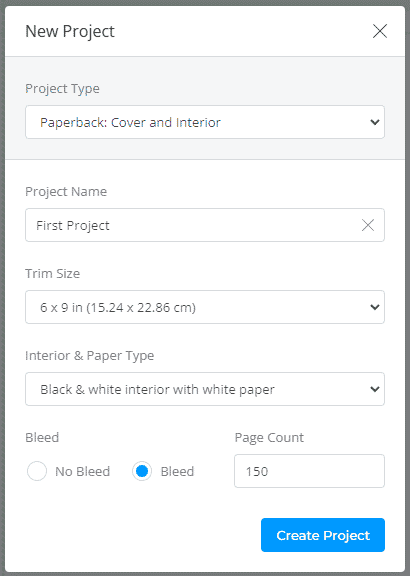
After you click Submit, it will build out your project template that will have your cover at the top, and all of the pages in the left hand menu.
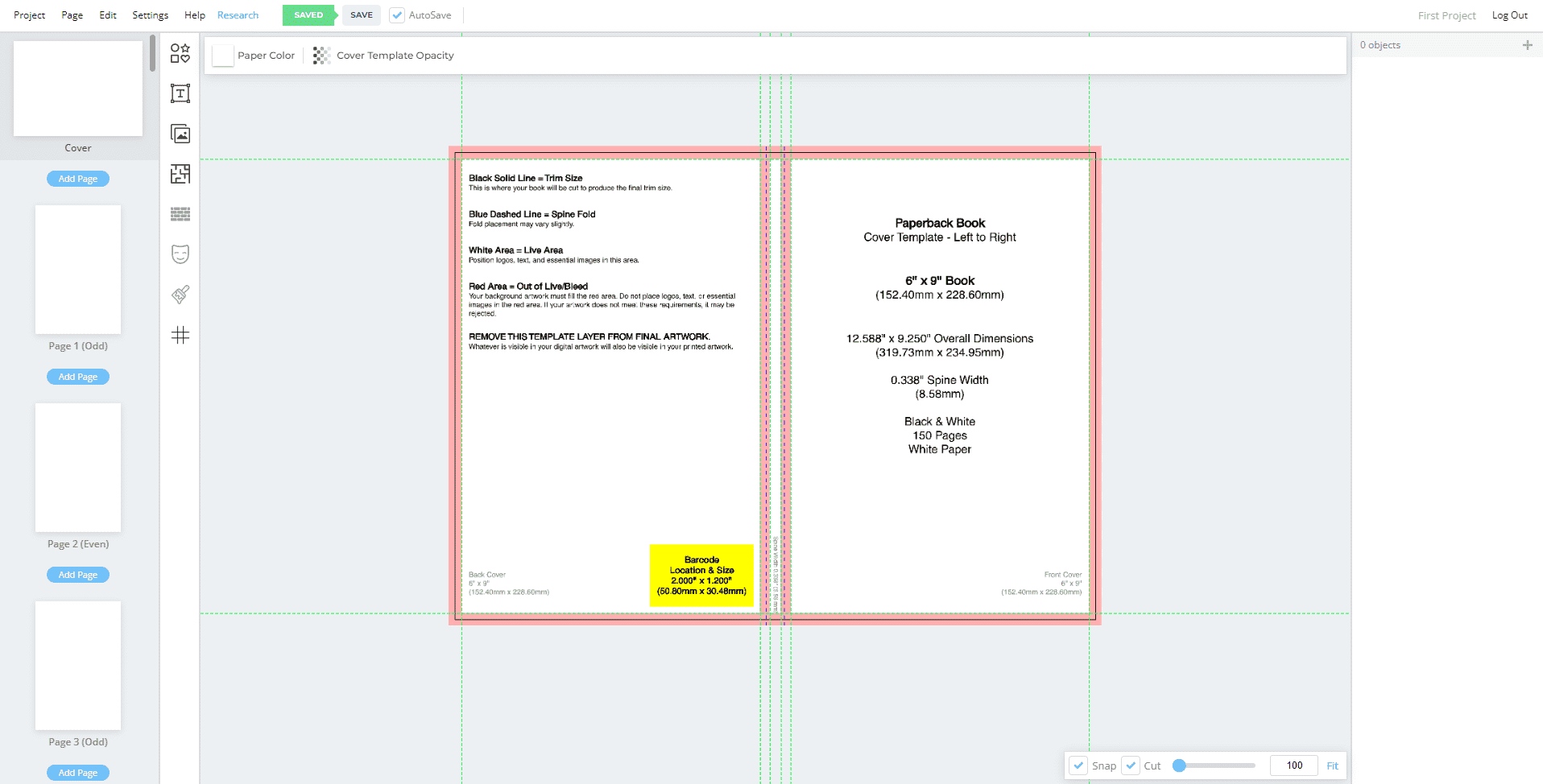
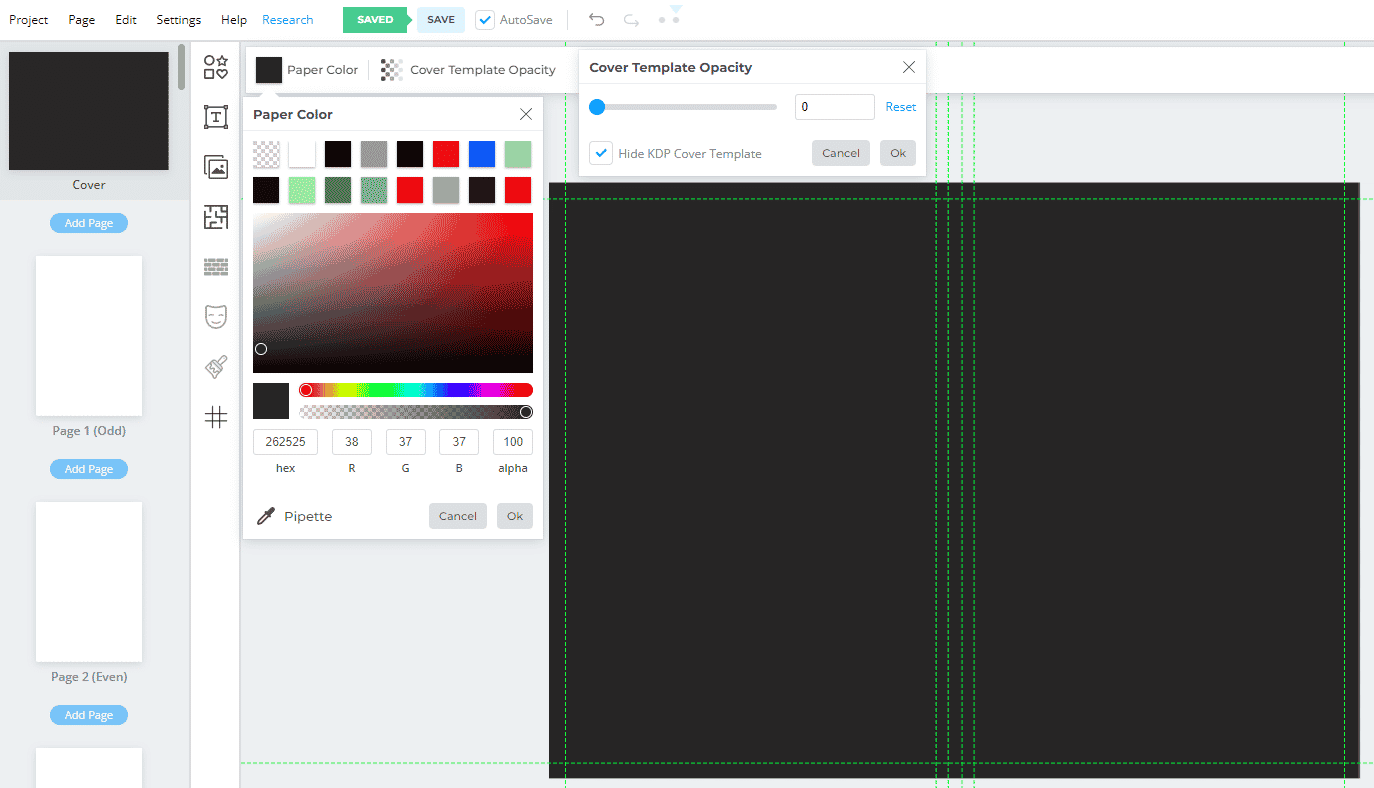
In order to make sure that your books go through on the KDP platform when we put them up for sale, we will want to make sure that they do not have a transparent background. In order to do this, first click on the cover template opacity button to turn off the background template.
From there, click on paper color which will change the background of your cover. As you can see, we have turned off the template, and given the background a blackish color.
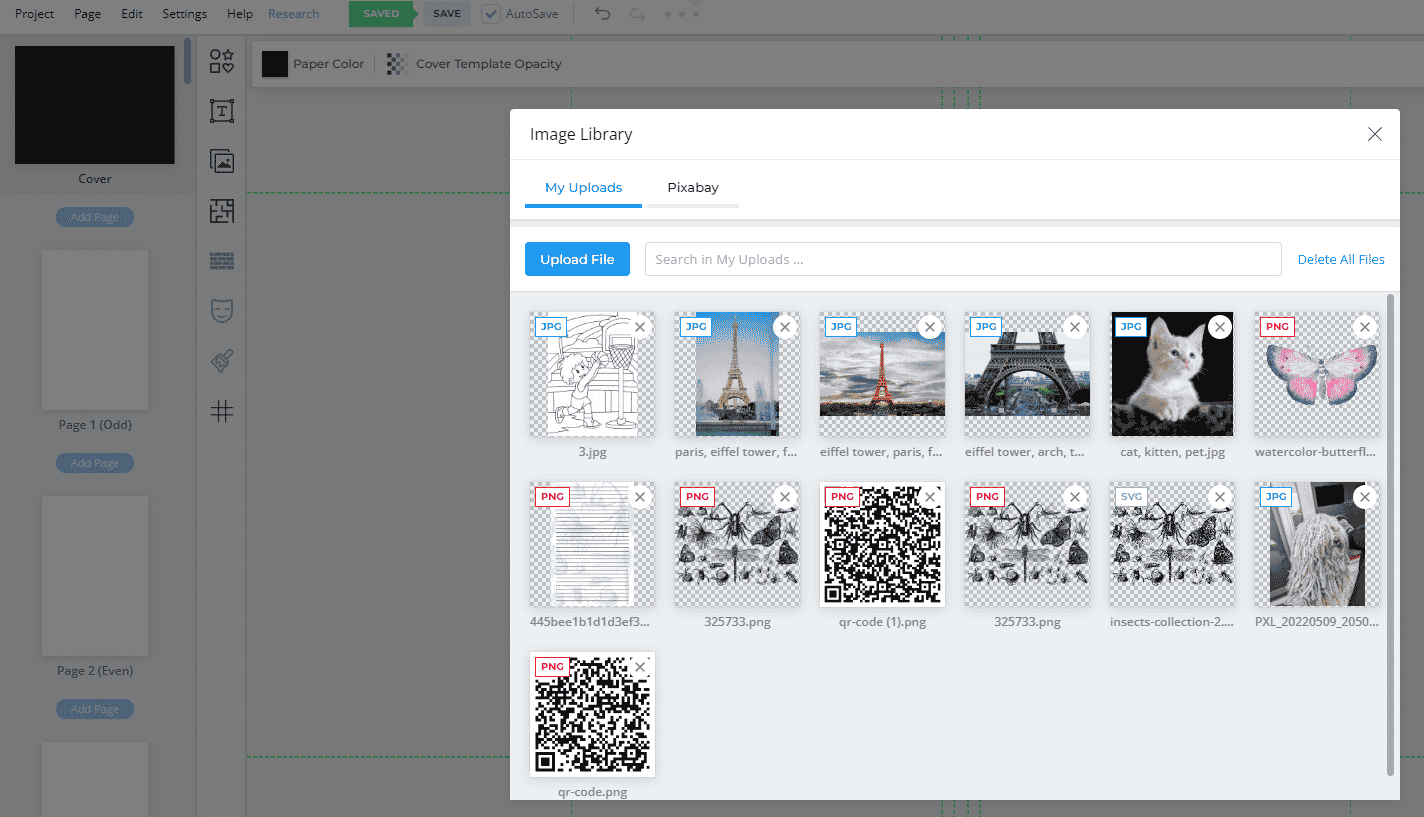
From here, we simply need to add our artwork that we have on our computer to the book cover. Click on images in the left hand menu and then drag your image to upload it.
Once you add your image, place it on the right side of the canvas as this is your cover. As you can see from the image below, I added an image of a butterfly and some text from the text menu. I then added a bit of stroke around the text.
NOTE: Your book cover MUST match whatever title that you give your book in KDP.
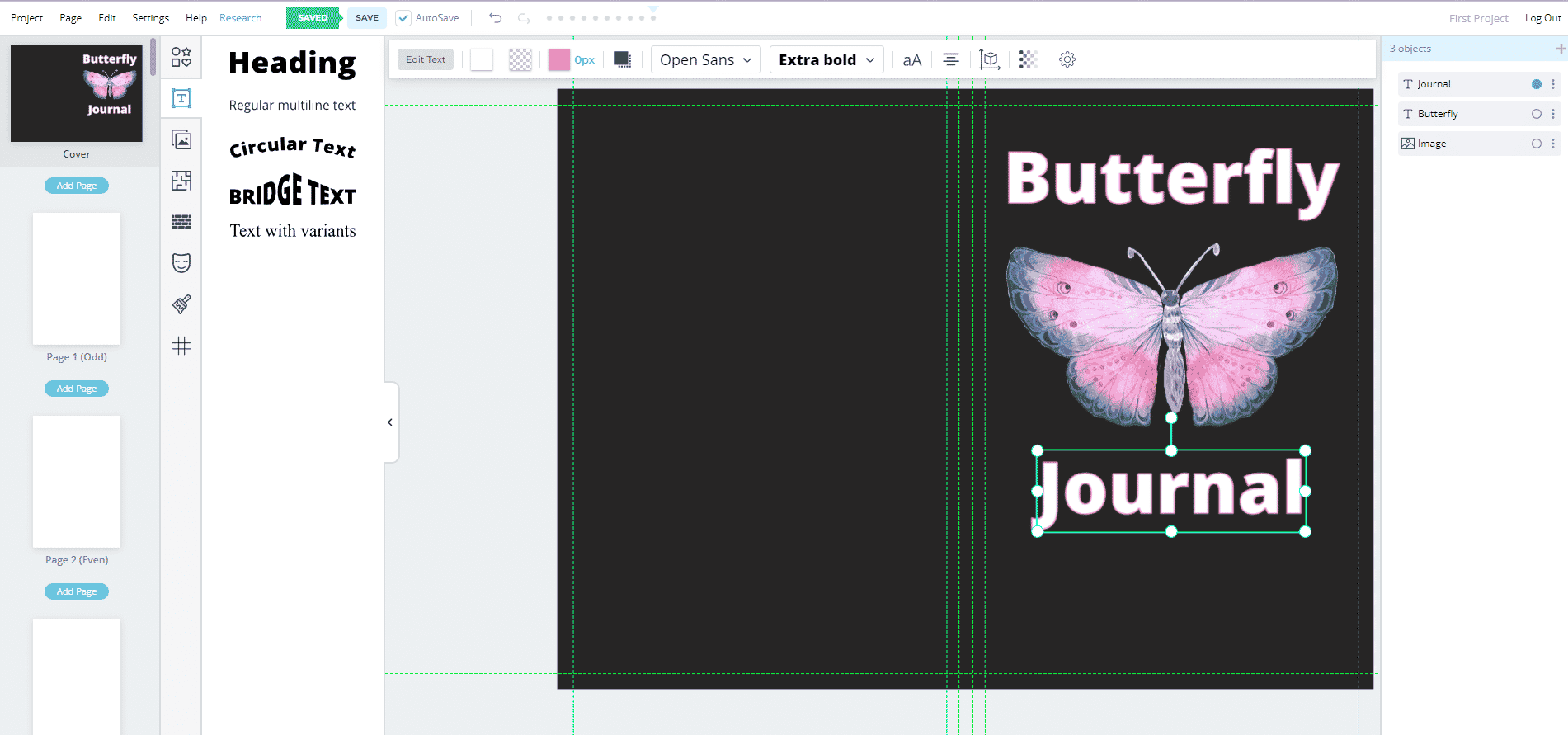
Now that you have your low content book cover ready to go, it is time to build out an interior for your book.
We are almost done completing our book! However, we only have the cover. We still need a no content interior!
In order to get a FREE interior, you can use one of the customizable templates inside of the Book Bolt Studio.
Start by going to the Interior Templates Library from the left hand menu after you select page 1!
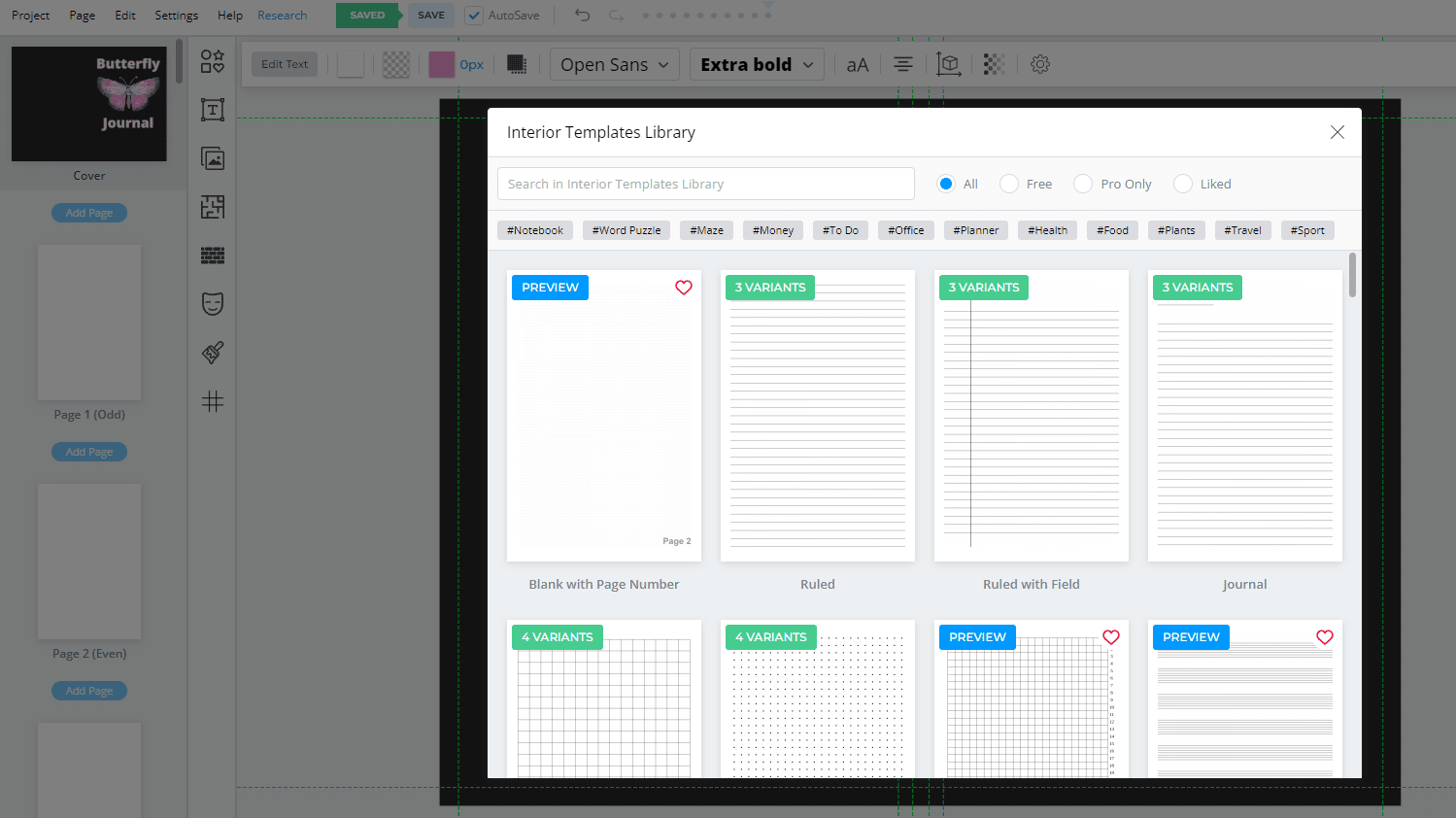
Inside of the Interior Templates Library, you will find over 100 customizable templates.
Start by clicking on one that you want to use. Let’s selected the ruled variant here:
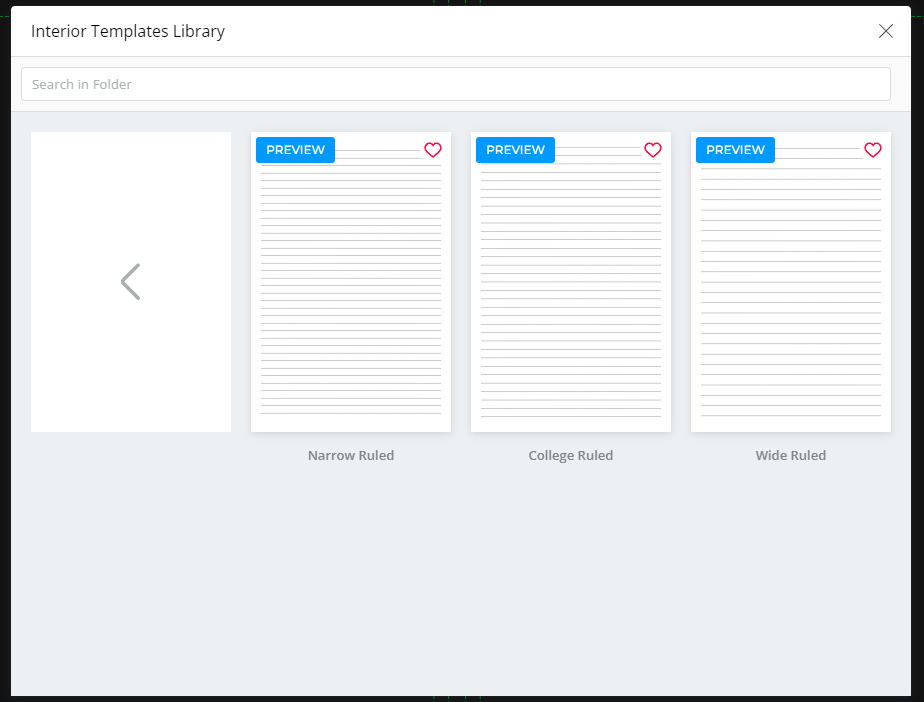
You will see that some of these have different options. Let’s select the college ruled template.
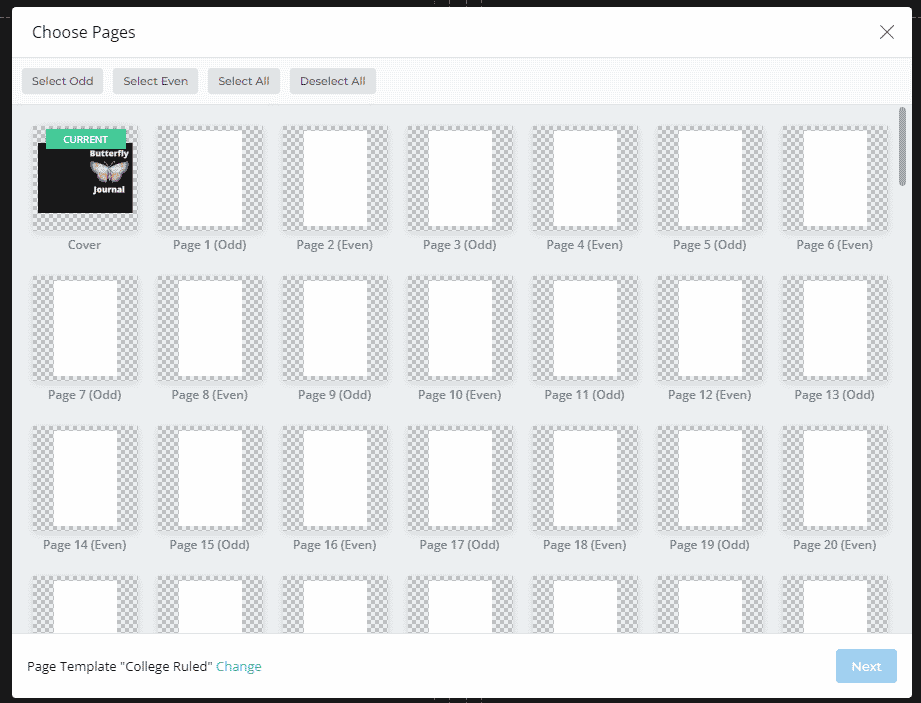
The next page will have you add this template to all of the pages you want. You can select all of them from the top menu, or mix and match your interiors.
Note: Remember to unselect the cover page!
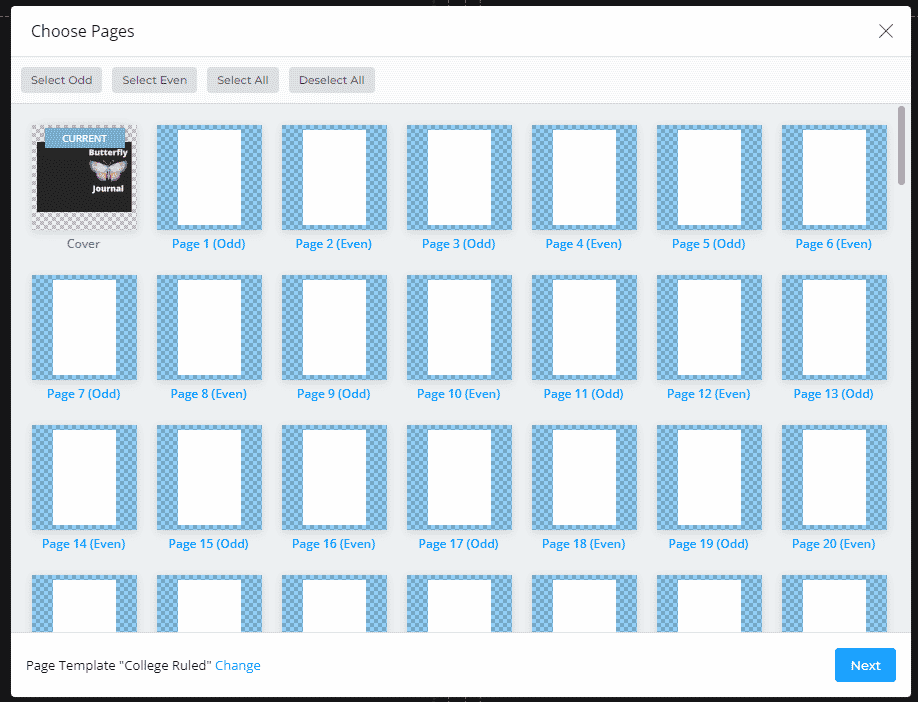
Click on next!
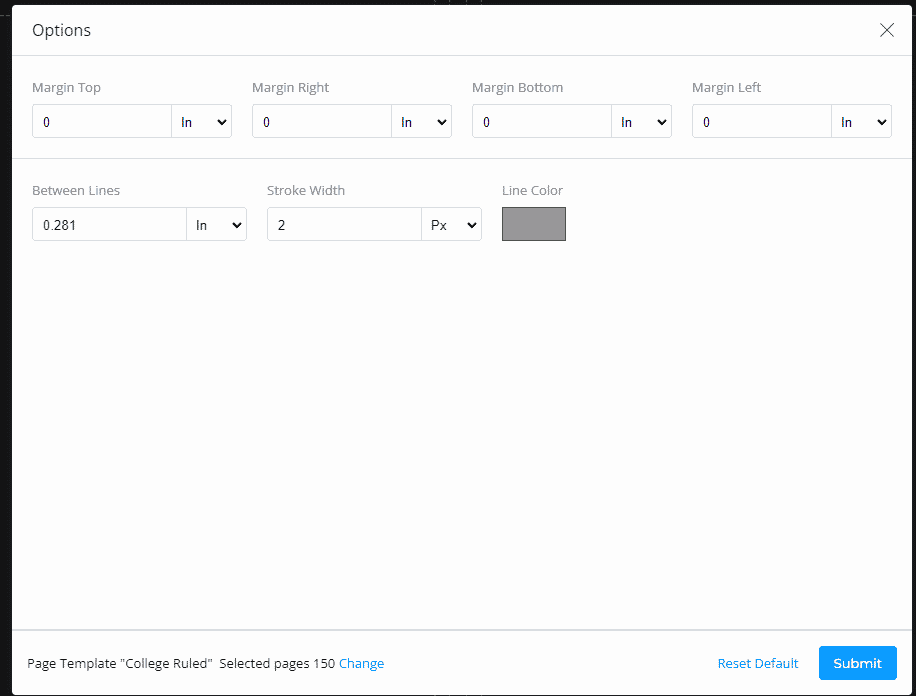
You can now edit the options, change the color, or the line spacing. Once you are happy, click on Submit and your entire interior will be filled in!
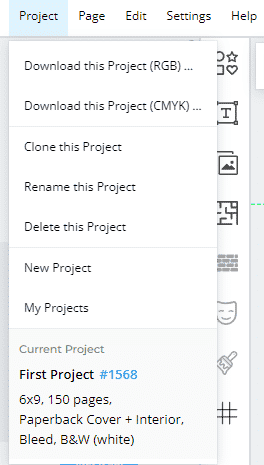
Head up to the top menu, click on Project, and then download the project.
This will be a zip file. Unzip the file on your computer and you will have the PDF files that you need.
Now that you have both your cover with artwork and your interior, it is time to upload your first no content book to KDP!
Uploading to KDP

Head back over to KDP where you made your account and log in. At the top, you will see +paperback. This is what you want to click. Remember, these are print on demand books, NOT ebooks.
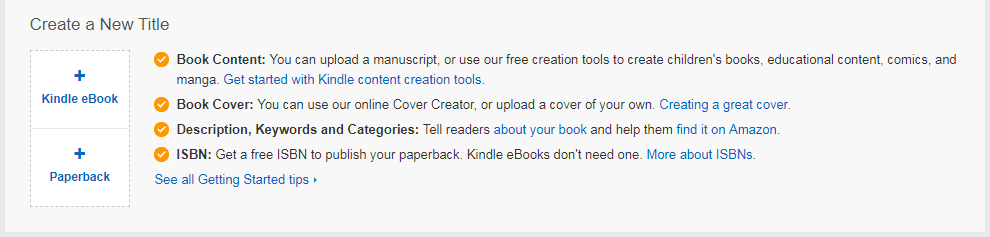
You now have 3 different tabs to fill out:

If you want this process to go really fast, make sure to grab the Book Bolt Lister inside of the Book Bolt Software here. This will help you list your products a LOT faster. For this example, I will go over how to do it manually at first so you can get a grasp on where everything goes.
The first thing you need to do is pick a language. Choose English for this since you will be selling on Amazon.com
The second box, asks you to add a book title:
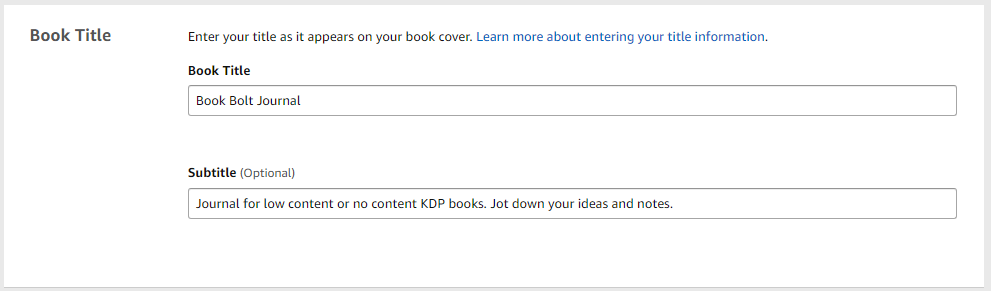
Note: For simple journals, I recommend setting the subtitle to include some keywords on what the product is.
NOTE: The book title is very important. This is directly from Amazon:
Title, subtitle, series
Your title must be listed on the cover (on the spine or front cover). It must also match the metadata you entered during title setup. Title information doesn’t need to appear in your manuscript, but it must match the metadata if it does. The subtitle, series, and edition information don’t have to appear on the files. If included, however, they must match the metadata you entered during title setup.
Your title must match what is on the cover of your book, but the subtitle can be different.
The next boxes to fill out are series and edition number. I always skip these as they are not needed. I ALSO skip the contributor section.
However, you still need to add an author. For these, I like to use pen names. If your book gets denied, you will want to go back and add your author to your cover somewhere.

Next, enter a small blurb for the description. I always fill this out so that the customers have something to read. Tell them what the book/journal/notebook is good for. Keep it simple here!
You will also need to make sure that you own the copyright and hold the necessary publishing rights. If the image you are uploading as your cover is your own (which is should be!), then go ahead and check that box:

The next box is for Keywords! This is where all the magic happens!
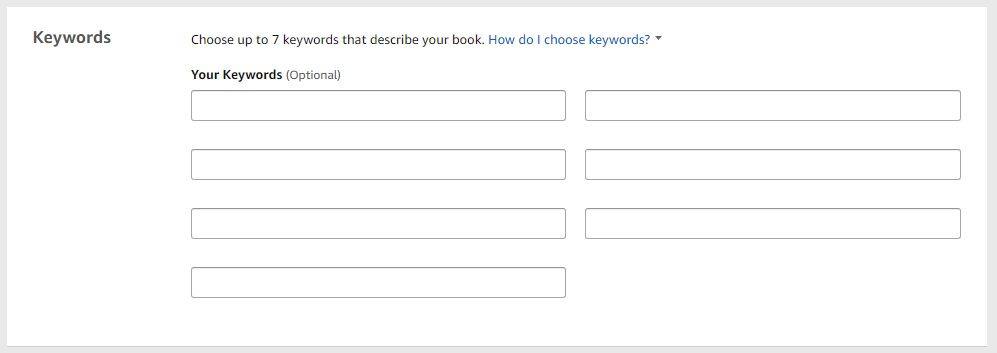
This little box right here is why we started building out the Book Bolt software in the first place!
The goal here is to bring keywords in that will get your books in front of a target audience that is interested in buying them. You can do this by checking out what those customers are already buying, and then use similar keywords in your own unique products.
KDP suggests that you do not use the same keywords here that you used in your title, category or descriptions. For this reason, we will want to use Book Bolt to find keywords in the same niche that we have not already used.
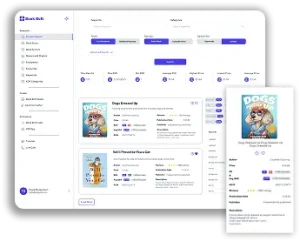
Log in to your Book Bolt Dashboard, head over to the cloud module and use the drop down to select Journal if that is the product you are going to be uploading. Now, I used the software name as the book example for this post, but lets say that instead I was uploading an illustrated dog.
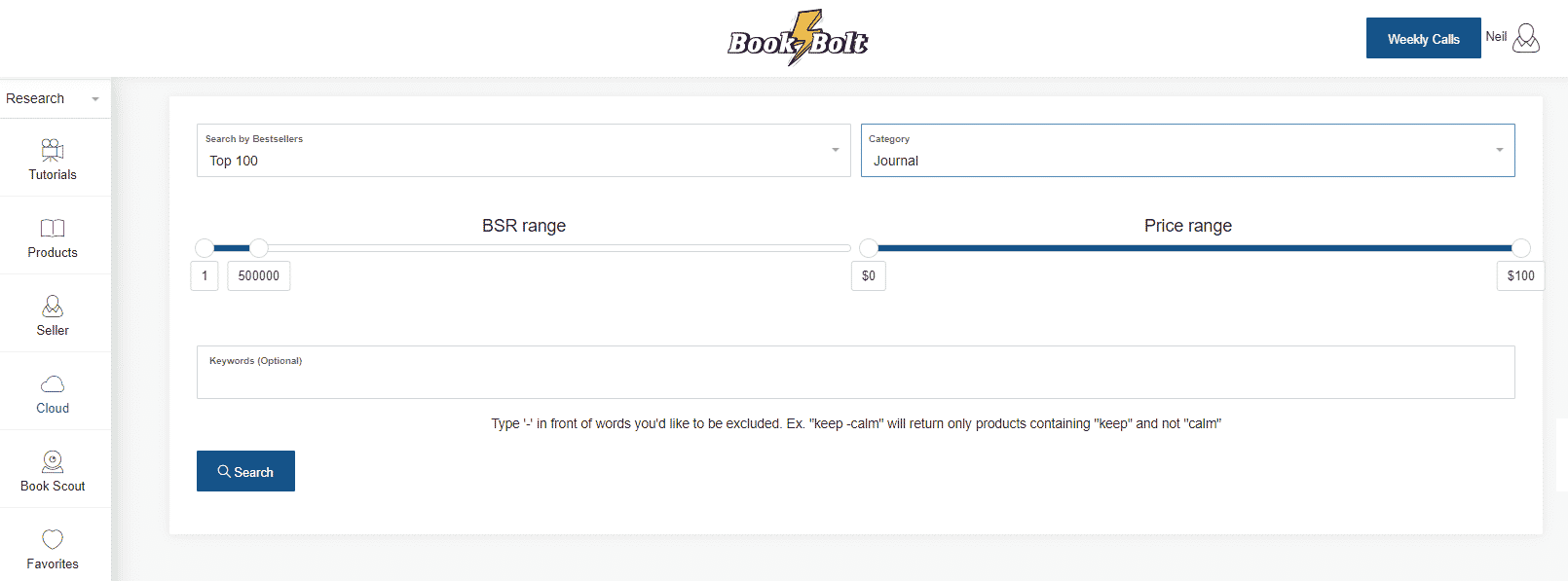
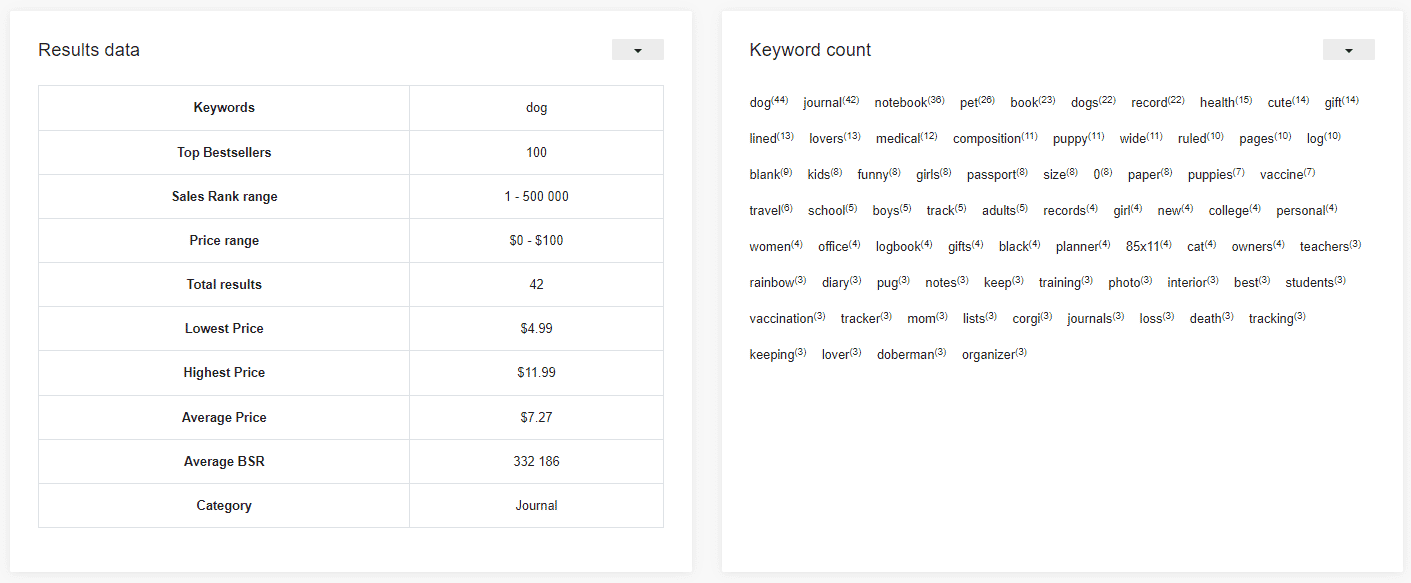
Enter dog into the keywords section, and click on search. This will bring back the best sellers from Amazon ranked by sales rank, and you will then have a full dashboard of keyword ideas for your unique book!
The first thing you will see is the results, lowest, highest and average price as well as the average BSR and category. This is great information when it comes to pricing your book later. What you want to look at first is the keyword count for the products. This is going to show you the keywords that are most used for those products that are MAKING SALES (exactly what you want to be doing).
Next, take a look at some of the products that are selling and see which ones are actually getting in front of people. This is going to be your competition:
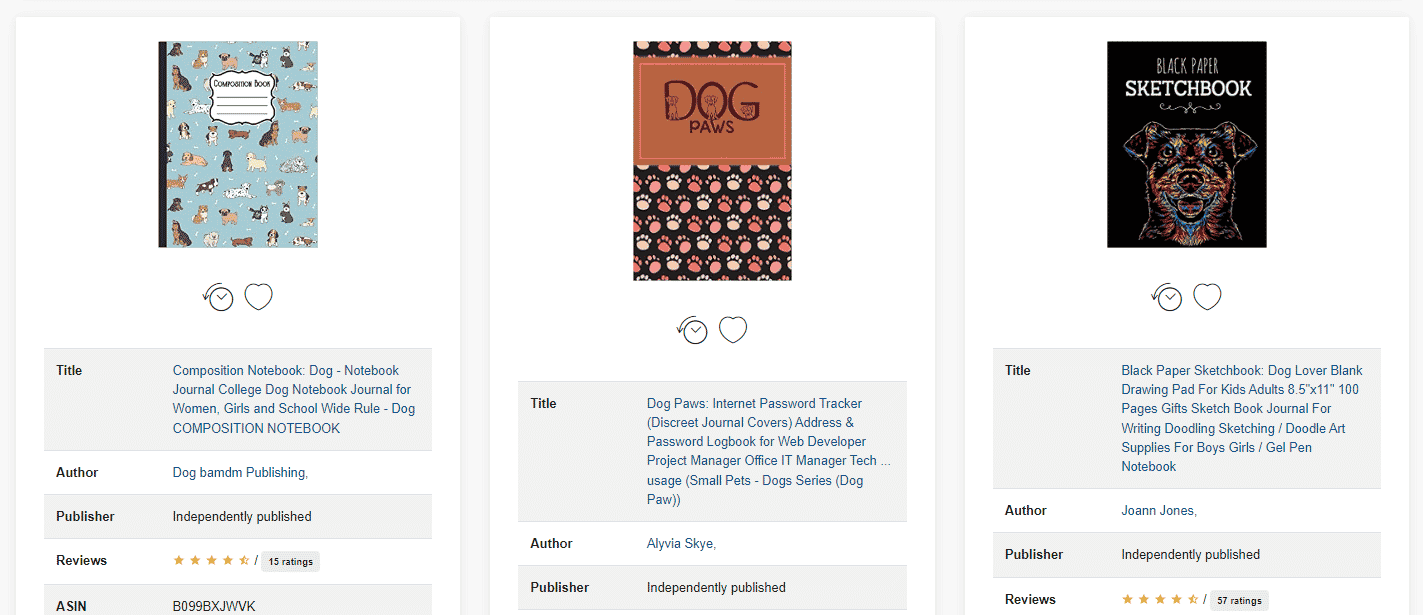
Remember, no customer wants to look through 500 results of the same dog. Only bother putting up your books if you are bringing something good, new and unique to the table.
Beneath each book will be a place to see the title, how well that book is selling, and other crucial information. You can also click on the clock icon which will bring up how well that book is selling over time and grab keywords from the title:
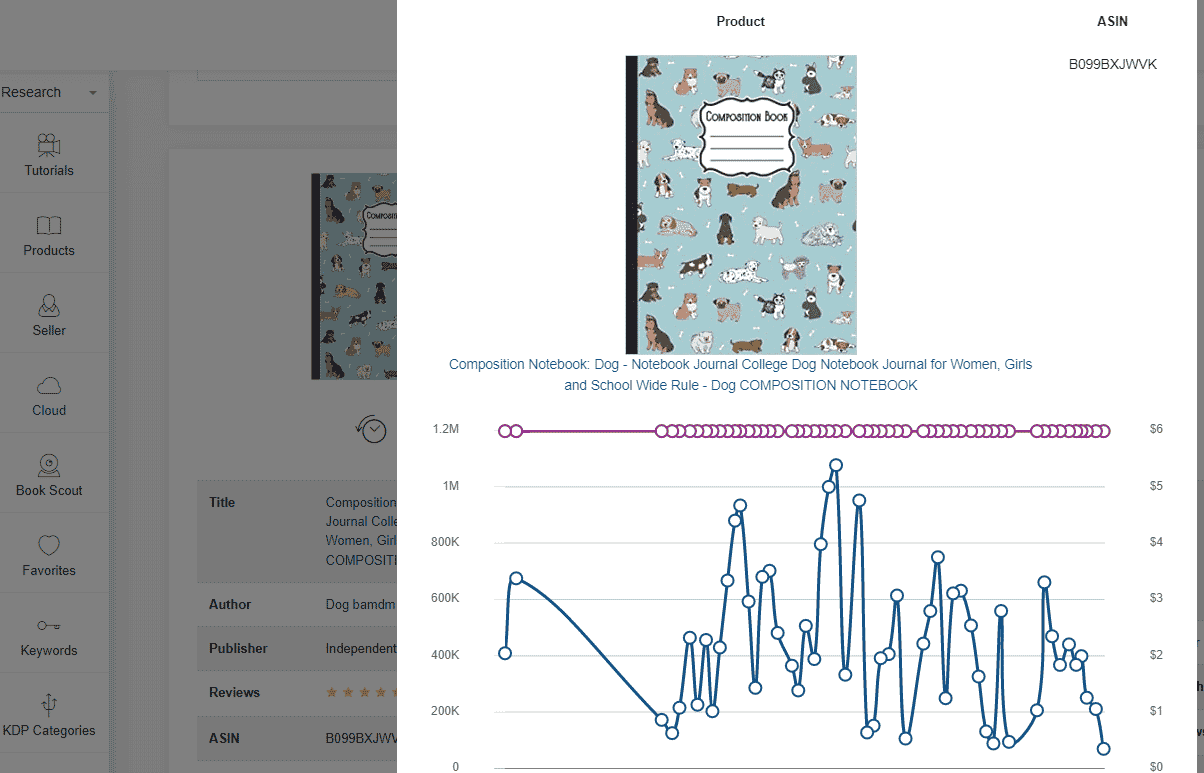
Gather 7 keywords/phrases, and put them into KDP! You are now ready to move on to the next step.
Select that your book does not include adult content (unless it does), and pick a category for your book. Once you have done that, click on the save and continue button.

NOTE: This process goes a LOT faster when you use the Book Bolt Lister: https://chrome.google.com/webstore/detail/book-bolt-lister/gkkkmiljegejildfmfcnicknbcfggdjk. You will need a Book Bolt Subscription to use this so grab your 3 day free trial.
Congrats, you are almost done!
You now just need to fill out the paperback content page and then select some pricing.
On the paperback page, click on the assign me a free KDP ISBN:
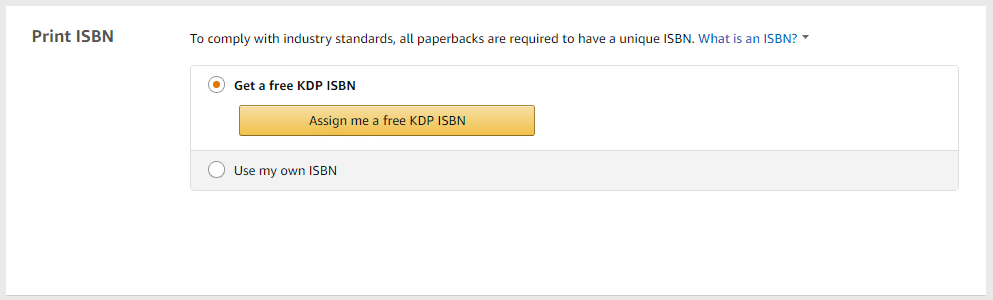
Note: This will ONLY be an option if you are doing an activity or coloring book. Otherwise, you will need to pick that you are uploading a low content book on the previous page.
After you get your free ISBN, you need to pick a publication date. Just select today’s date for this section.
In the next section, you will need to pick some print options:
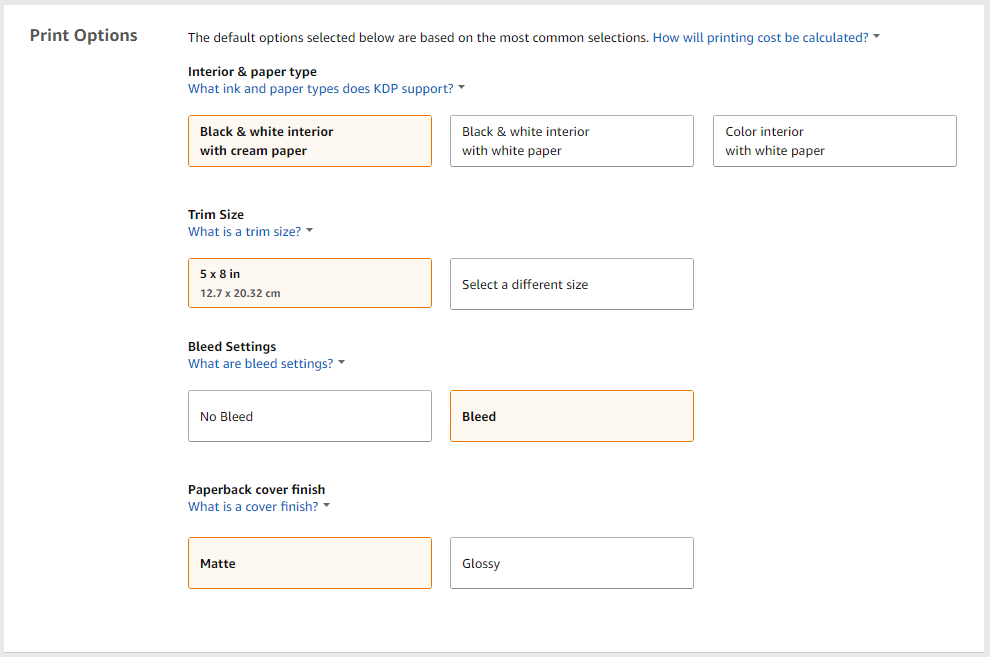
I typically leave all the options alone except for the trim size and bleed. This must match your cover and interior that you created earlier in this guide. As you can see, I have selected 5X8 in the screenshot, and not 6X9 like we did in the first steps. This needs to be changed! Make sure everything matches up.
Note: You need to select BLEED on this page.
Upload your manuscript. This is going to be the PDF file interior that you downloaded from the interior wizard.
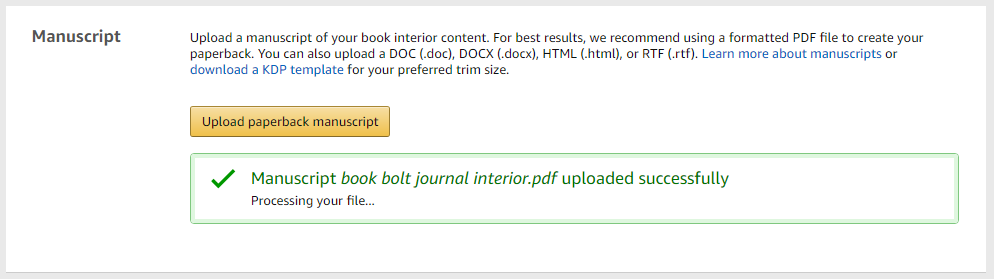
Then click on upload a cover you already have (the PDF you downloaded from the designer).
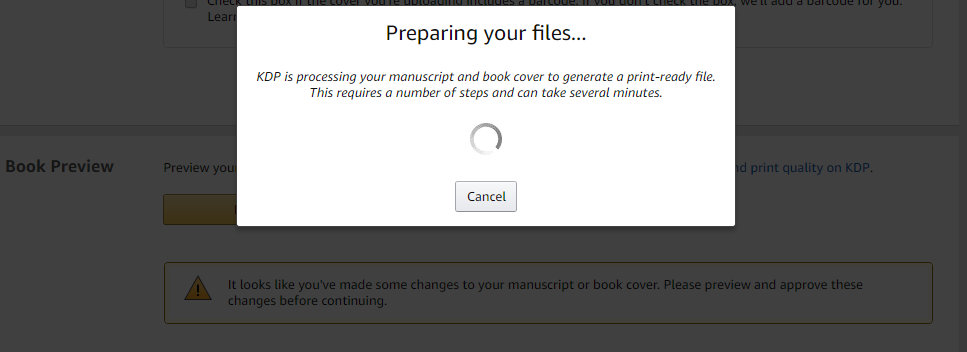
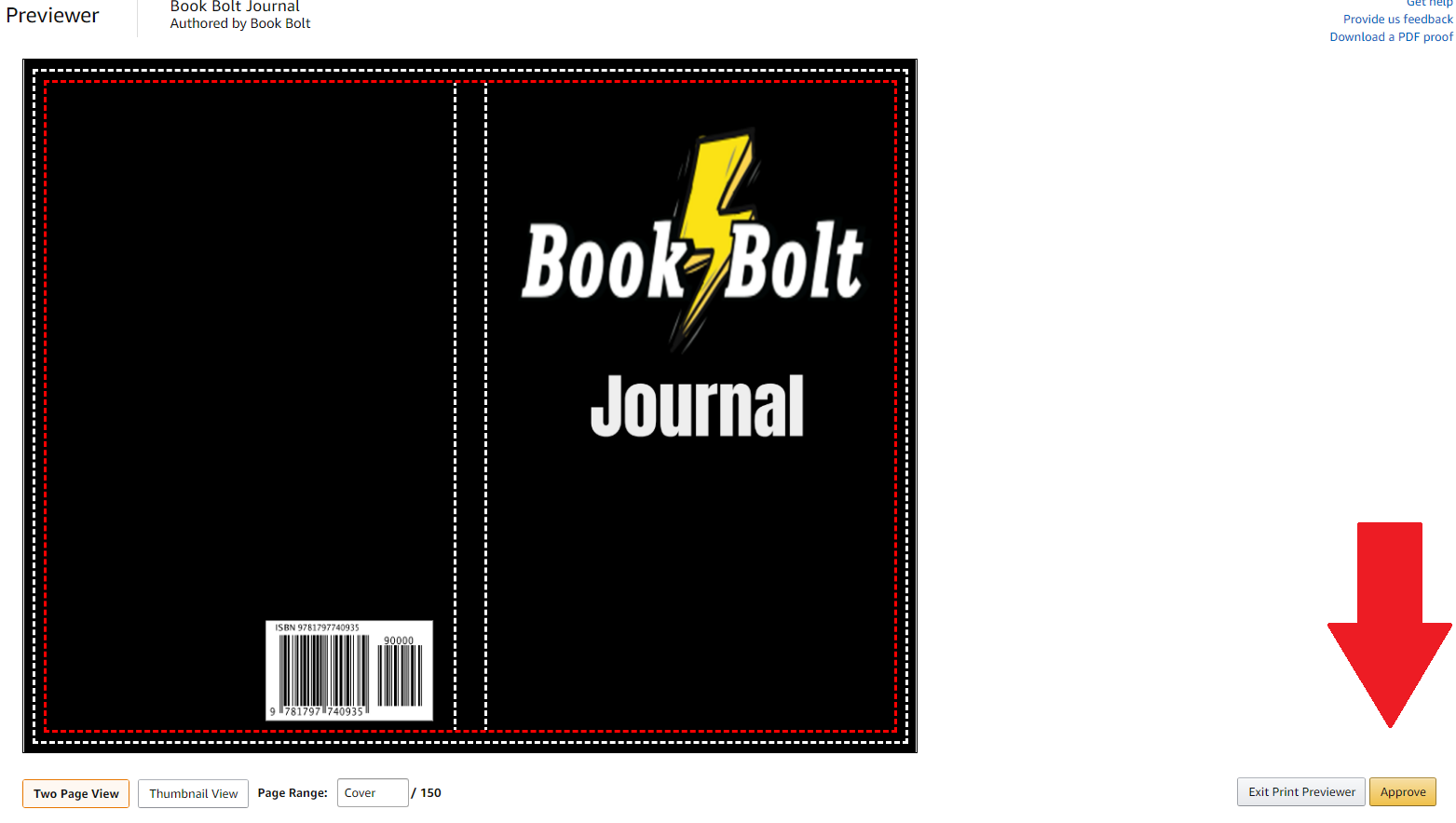
While everything loads and processes, you will need to launch the previewer to make sure everything looks good. If it is still loading, just wait a while for it to prepare the files:
Once the process has prepared your files, simply click approve in the lower right hand corner:
Click on save and continue at the bottom of the page to finish up your book and select pricing.
I always pick that I want it distributed to all territories.
Then you get to the fun part, pricing! This will show you what the printing cost is, and what kind of royalty that you will get!
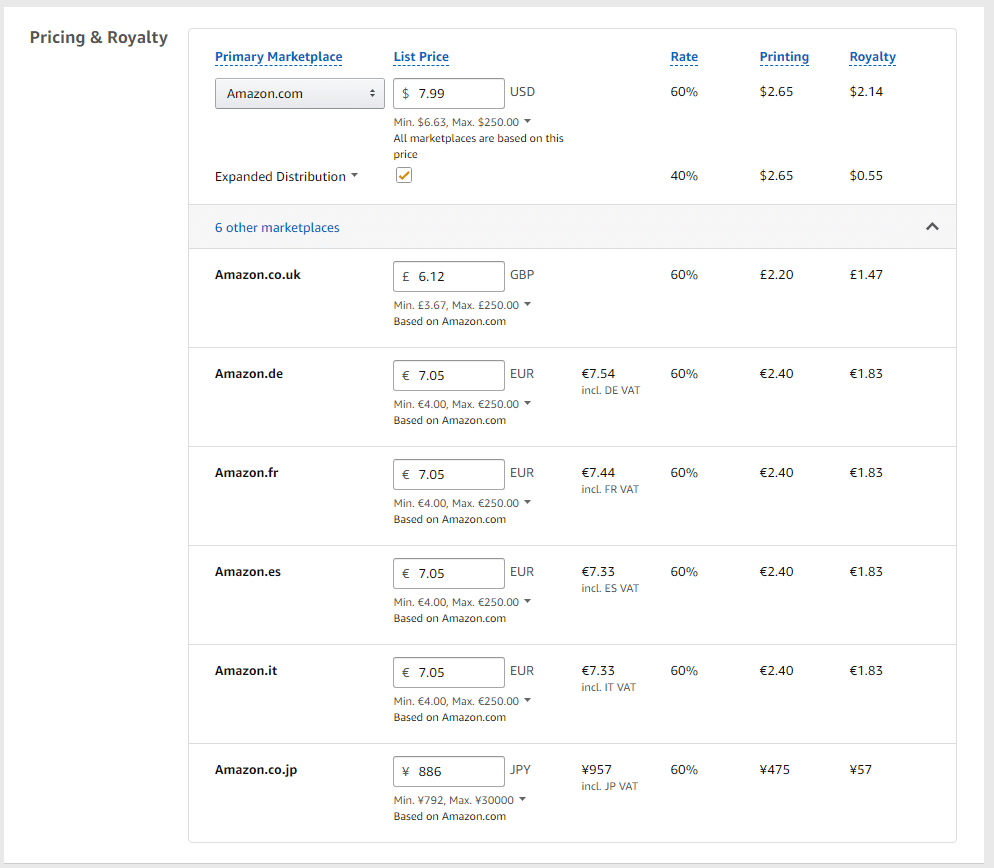
All you really need to do is select a list price and expanded distribution here. The 6 other marketplaces will automatically fill in depending on what you select for the list price on Amazon.com.
As you can tell, I will be getting $2.14 every time this book sells in my pocket at a list price of $7.99. I carry NO inventory. There is NO customer support! Best though, we do not have to do any work after this and the book will never come down if it doesn’t sell in X days. Pretty great!
Scroll to the very bottom of the page and click on publish your Paperback Book. It can take up to 72 hours for your book to be available on Amazon but we are seeing average approval times currently of about 16-20 hours.

…and that’s it!
Your no content book will be live on Amazon soon and be available to purchase for the millions of potential customers that Amazon has browsing their site on a monthly basis!
A Short Note on Royalties
Now that you have made it to the end, some of you may be shocked at such a low royalty. I think a $2 royalty per book is actually amazing! These books are such low effort on your part, that once you put them up, you never worry about them ever again. You also do not have to do any work past the first upload. There is no customer service, there is no inventory or upfront cost… there is also a LOT LESS COMPETITION!
For most, you will be reusing the SAME business assets you already have (designs). So why not add an extra stream of revenue to your business?
Wrapping It Up

That about wraps up the entire guide and process of getting your first books for sale on Amazon through the KDP platform.
There is pretty much unlimited potential here. For those people that got into Merch by Amazon at the beginning, you will remember how long it could take to be accepted (1 year?!). There is none of that with KDP. You can sign up today, and get your book for sale in the next 20 or so minutes.
There is pretty much no barrier to entry and this is some of the easiest money you will make. You MUST be willing to put in the time to research and upload the books, but the work will pay for itself in dividends far greater.
If you have decided to take the leap and list your first no content books or have been doing so for a while, let us know how its been in the comments below!
Good luck out there!